

How it works

A whole schedule. Three simple steps.

CalDone turns the schedules families already receive into events in the calendars they already use. No entering one event at a time. No new calendar to manage.

Start with what you already have

Use the schedule you already have.

A photo, a PDF, a screenshot, or pasted schedule information can hold a whole season of dates. CalDone keeps that context together instead of making you type one event at a time.

Parents at a school information session sorting through multiple paper schedules and handouts
One family calendar can start with many different schedules.

Common schedule materials

Real schedules, in the formats they arrive.

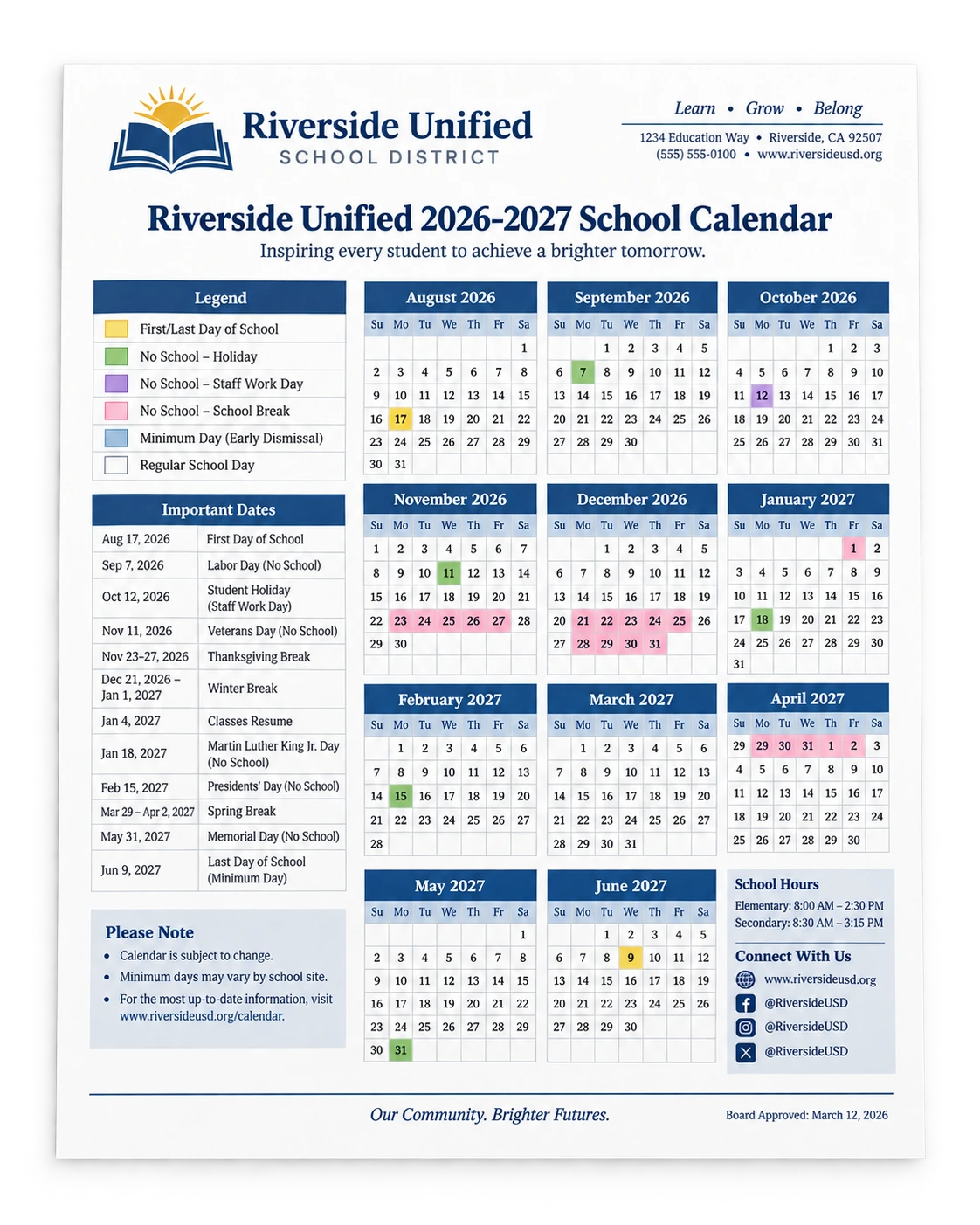
School calendar with dates and activities
School calendars
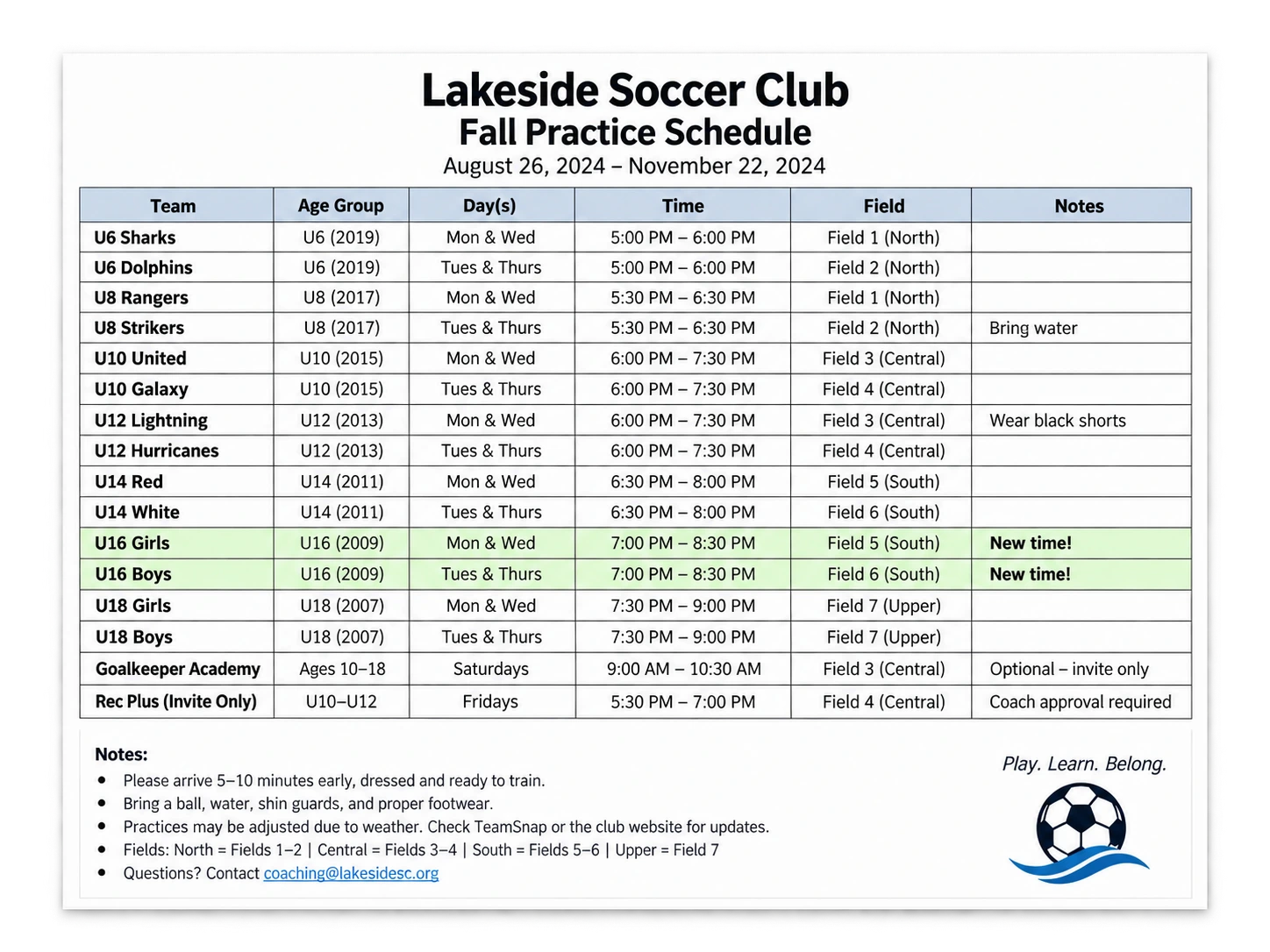
Youth soccer schedule with games and practices
Team schedules
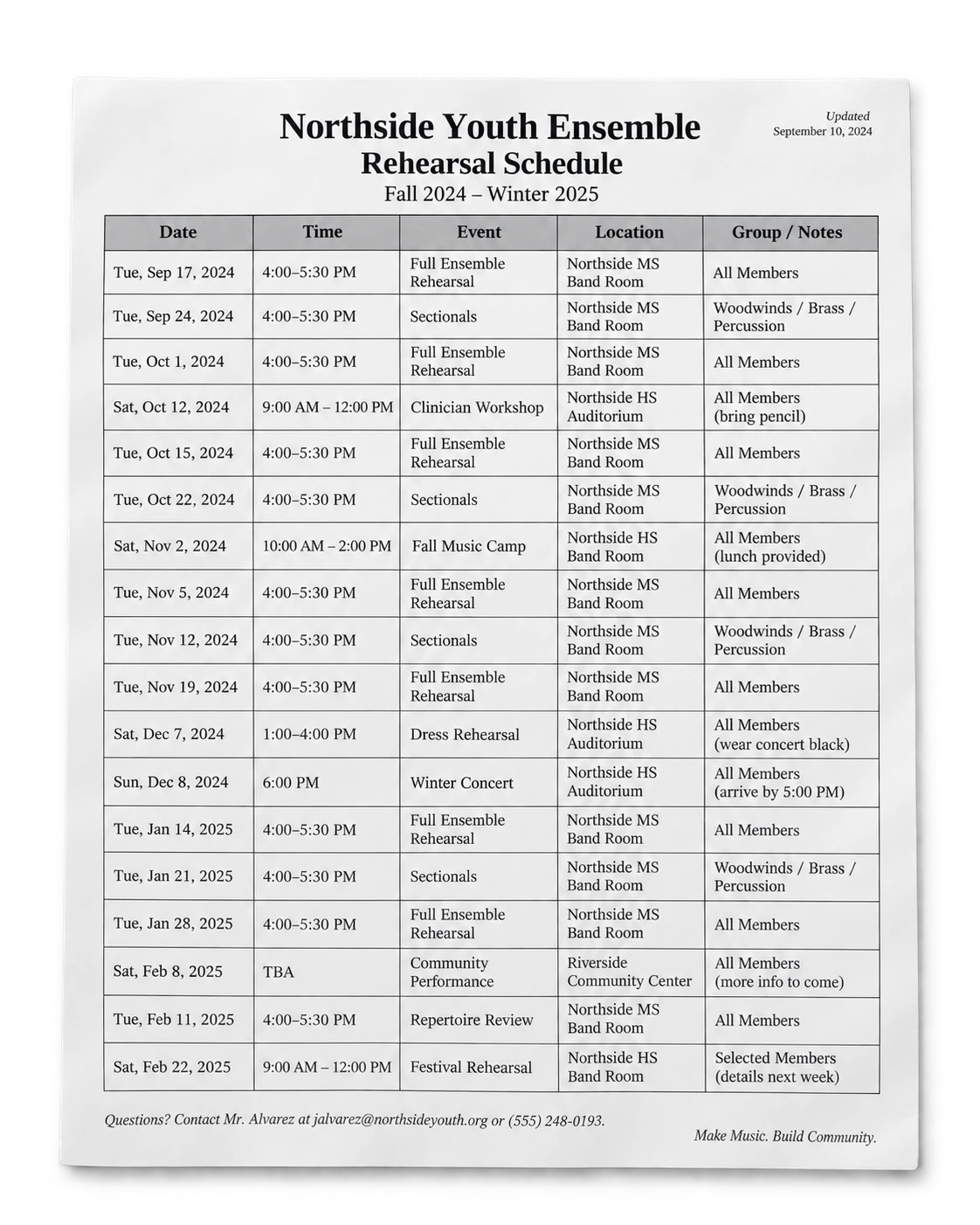
Ensemble rehearsal schedule
Rehearsal schedules
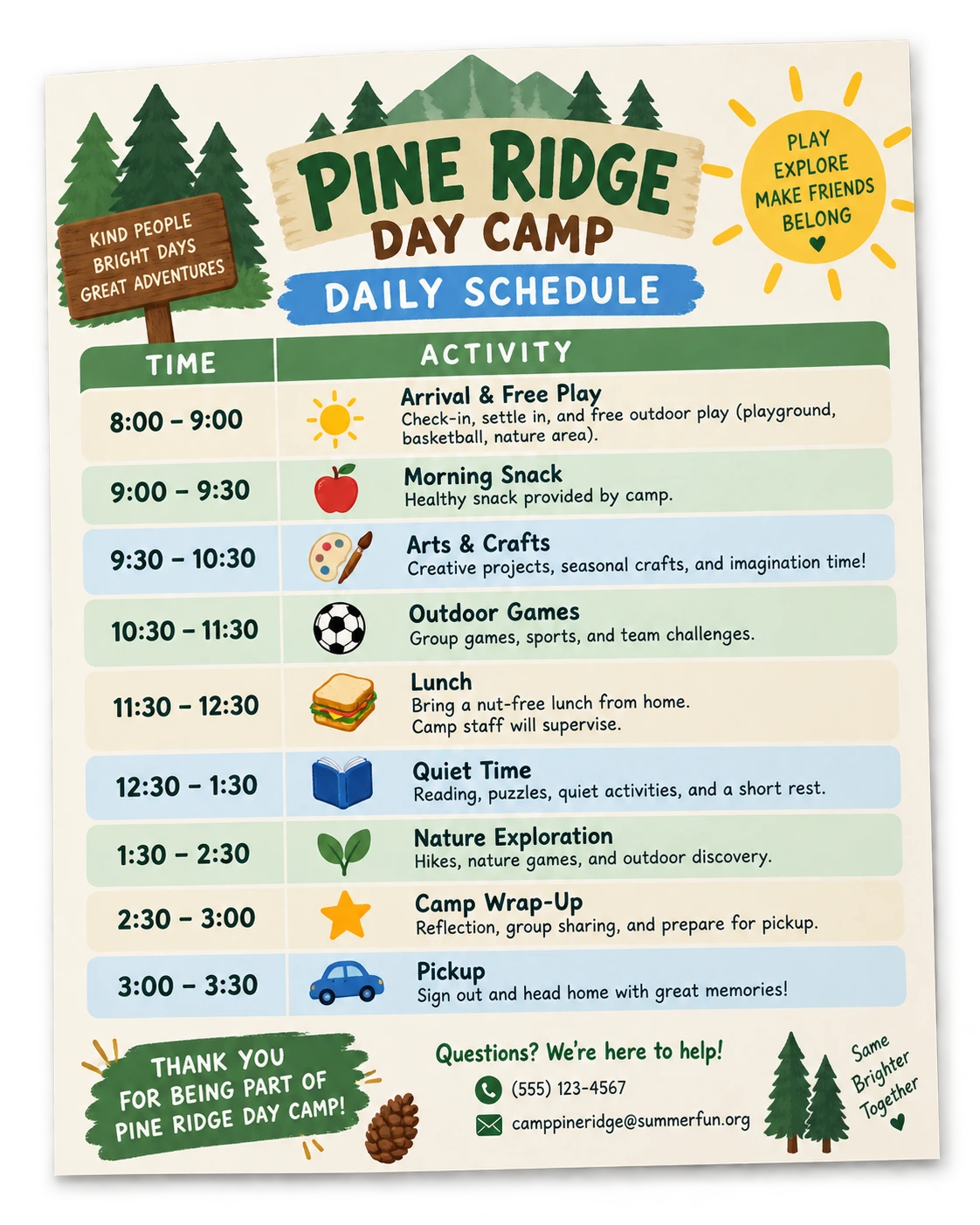
Camp schedule with daily activities
Camp handouts

The CalDone flow

A calmer path from page to calendar.

01

Add the schedule

Start with what you have. Take a photo, choose a photo or up to six photos, select a PDF of up to six pages, or paste schedule text.

CalDone reads the schedule and prepares the events for you to review. Larger schedules can take up to about two minutes, because checking the details takes care.

02

Choose events to add

Keep what matters to your family. Include or exclude individual events, select an entire grade or team, or choose just one group. Events shared by multiple groups can stay included when they apply to the group you choose.

When something needs a closer look

Quick Check helps clarify missing or uncertain details, such as an event's duration or a year that wasn't printed on the schedule. When several events need the same answer, you can answer once for the group — or handle them separately.

Review what's been found before anything is added. Events you leave out stay out, and CalDone shows which events won't be added. Items marked canceled in the source schedule are shown as canceled and switched off.

03

Choose your calendar, then Add

Your selected events are ready. Choose where you want them to go and tap Add.

CalDone supports Google Calendar and Outlook Calendar on Android and iPhone, plus Apple Calendar on iPhone.

Make it yours, if you'd like

Before adding, you can optionally personalize your events by choosing a person's name, an activity, how event titles appear, or reminders. A live preview shows how an event will look.

Prefer to keep things simple? Skip personalization and add the events as they are.

Calendar done.

Your selected events are added to your chosen calendar. CalDone confirms the result, and you can use Undo to remove the events it added without disturbing your other calendar events. Recent Imports keeps a list of schedules you've added.

Optional, after review

Share the events you’ve already checked.

After the original sender reviews the schedule and resolves unclear details, they can share those event details. Recipients choose what they need for their own calendar; they don’t repeat Quick Check.

Sharing doesn’t edit the original schedule or sync later changes automatically.

App screens

A closer look at CalDone.

Add the schedule
CalDone app screen for adding a schedule
Add the schedule
Choose events to add
CalDone app screen for selecting schedule events
Choose events to add
Grouped Quick Check
CalDone app screen showing a grouped Quick Check answer
Grouped Quick Check One answer for multiple events.
Optional personalization
CalDone app screen for optional event personalization
Optional personalization if you’d like
Choose your calendar
CalDone app screen for choosing a calendar
Choose your calendar
Calendar done
CalDone app screen confirming calendar events were added
Calendar done

Illustrative app screens; examples may show different imports.

Review stays with you

When a detail needs attention, it gets your attention.

CalDone calls out details that are unclear before events are added. Quick Check lets you review what needs attention and make the decision before anything goes into your calendar.

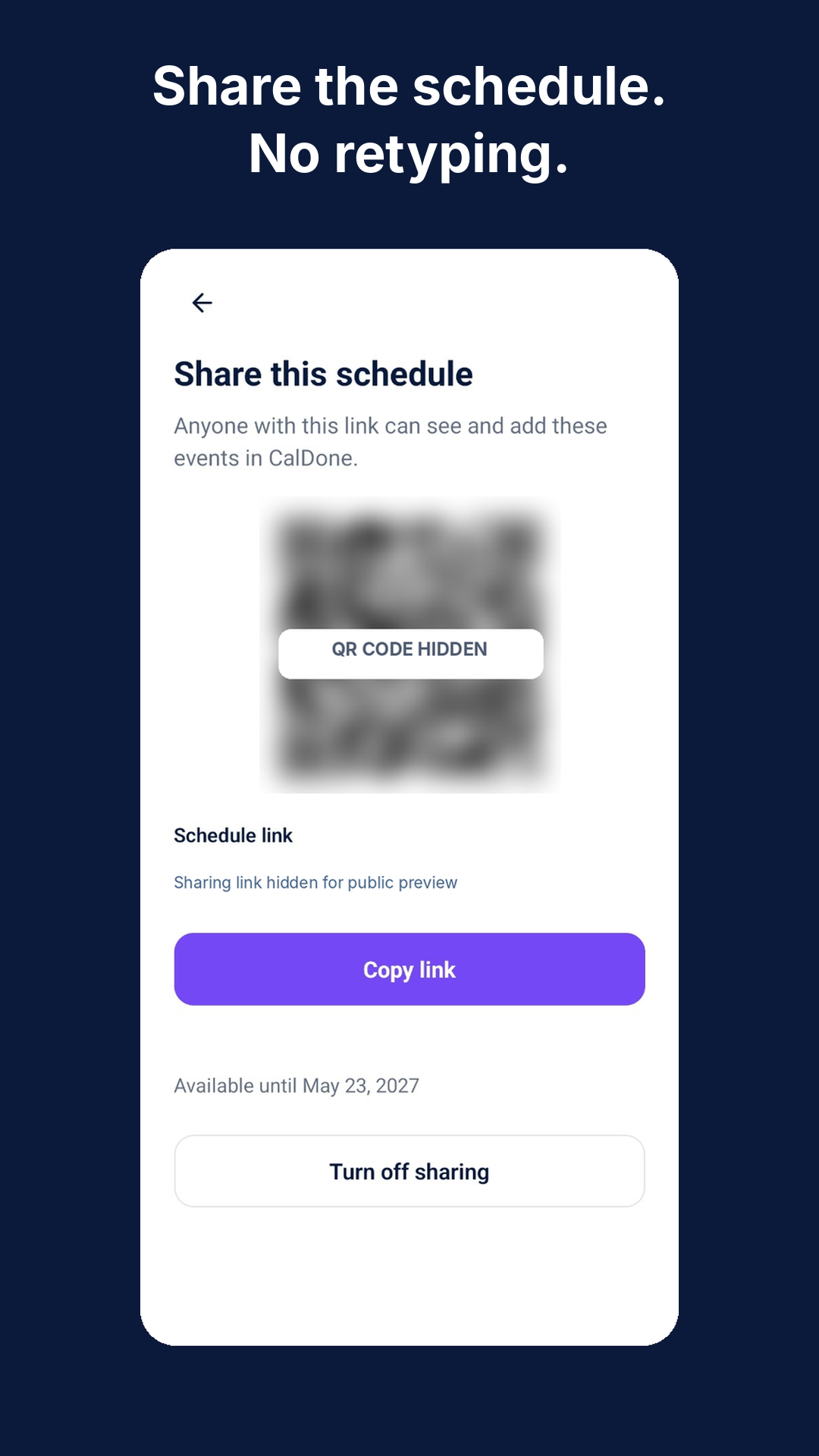
One schedule. More calendars.

Share a schedule with a link or QR code. Another parent, grandparent, or family member can open it in CalDone, choose the events they need, and add them to their own supported calendar.

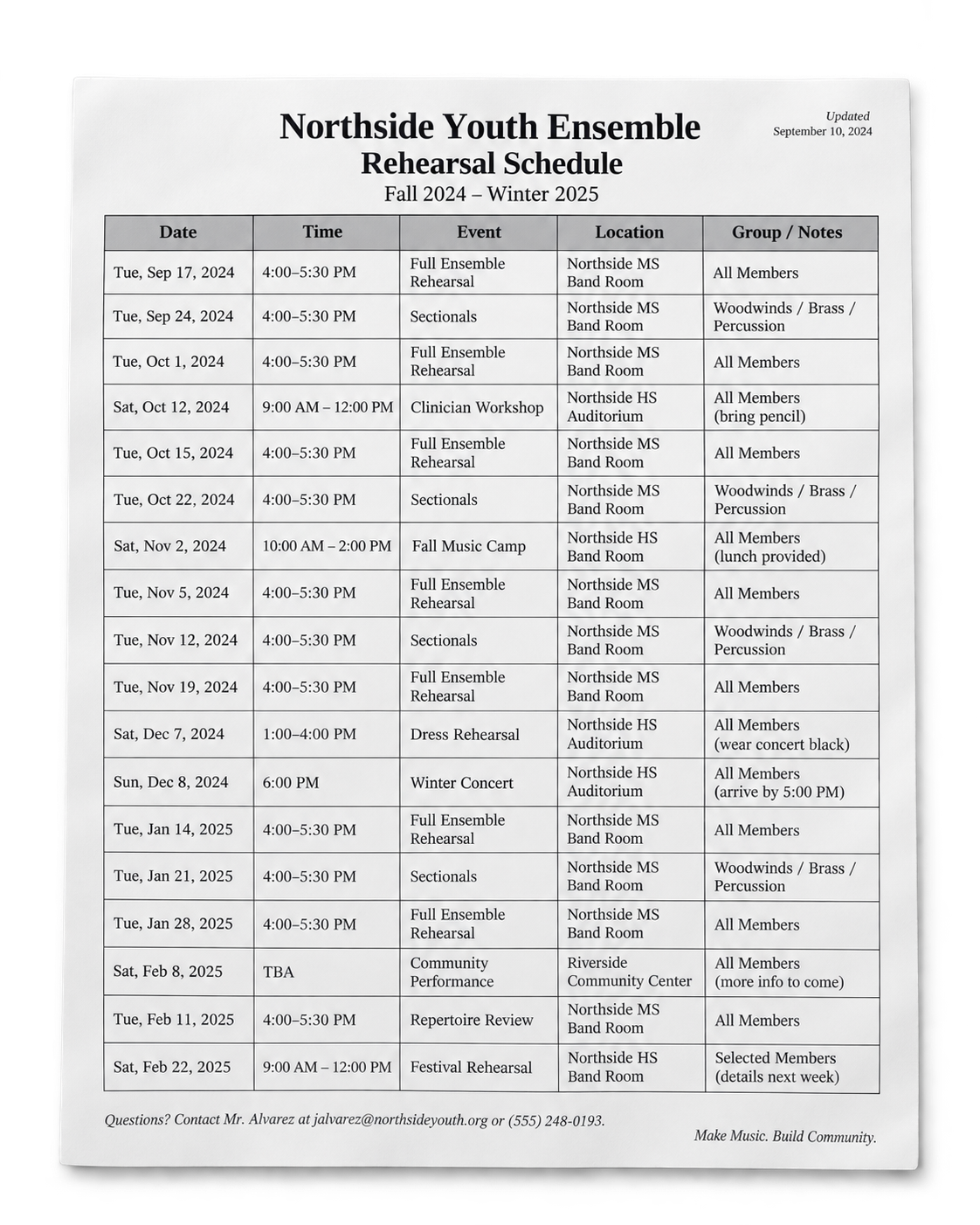
Clean Northside Youth Ensemble rehearsal schedule with a Feb. 8 Community Performance time marked TBA
Review the details worth a second look.

Schedule in. Calendar done.

Import the season — not one event at a time.

Their schedule. Your calendar. No typing.

Sharks softball team huddled together at golden hour